Friday, December 30, 2016

Joomla Installation

System Requirements for Joomla 3.x

  • Database − MySQL 5.1 +
  • Web Server −
    • WAMP (Windows)
    • LAMP (Linux)
    • XAMP (Multi-platform)
    • MAMP (Macintosh)
    • Nginx
    • Microsoft IIS
  • Operating System − Cross-platform
  • Browser Support − IE (Internet Explorer 7), Firefox, Google chrome
  • SSL (Secure Socket Layer) − A valid security certificate is required for HTTPS
  • PHP Compatibility − PHP 5.4+ or PHP 5.3.10+

Download Joomla

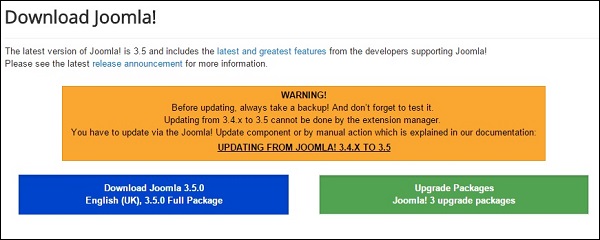
When you open the link http://www.joomla.org/download.html, you will get to see a screen as below −
joomla Setup
Download the Joomla zip file from the official site or if you want to update the files of your previous version, then click on Upgrade Package option.

Create Store Database

  • Joomla requires MySQL database. So create a new empty database and user/password (for e.g. User as "root" and password as "root" or else you can set as per your convenience) for Joomla.
  • After following the above step, you can continue with the installation process.

SetUp Wizard

It's very easy to set up Joomla into your system. The following steps describe how to setup Joomla locally on your system.
Step (1) − Extract the downloaded Joomla folder and upload it on your web server or localhost.
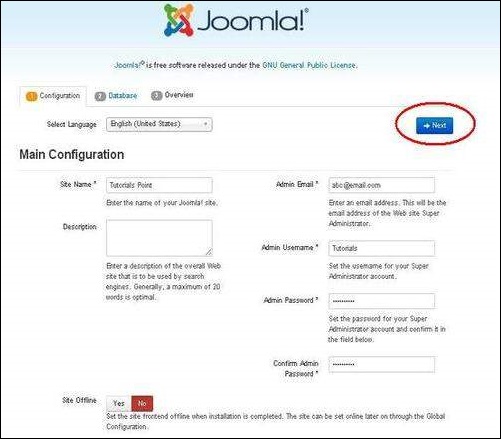
Step (2) − Open your browser and navigate to your Joomla file path, then you will get the first screen of the Joomla installer as shown in the following screen. In our case the path is localhost/< Your_joomla_folder >.
joomla Setup
It contains the following fields −
  • Site Name − Enter the name of the site which you are going to create in Joomla.
  • Description − Add a small description about your site.
  • Admin Email − Enter your email address which helps to recover our password or any update.
  • Admin Username − Enter the username as per your choice while logging into Joomla.
  • Admin Password − Enter password to protect your site.
  • Site Offline − It specifies whether your site should be offline or online after completion of installation by clicking on Yes/No.
After filling all the information, click on the Next button.
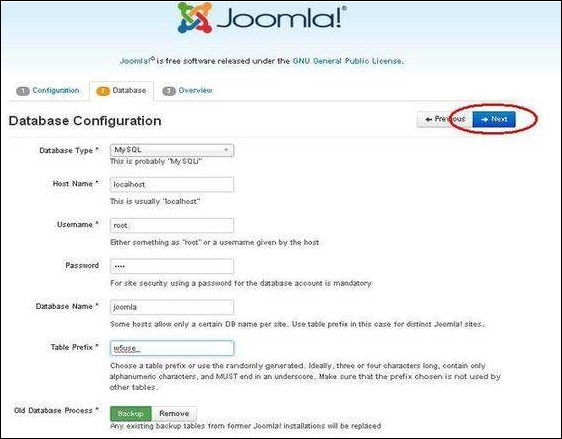
Step (3) − Here, you have to enter the information about the MYSQL database as seen in the screen below.
joomla Setup
  • Database Type − Select your database type. By default it'll be MySQLi.

    Host Name − Write the host name by default it'll be localhost.

    Username − Enter the user name of your MySQL database.

    Password − Enter the password which you had set for MySQL Database.

    Database Name − Enter the database name which you've got created in MySQL database for Joomla.

    Table Prefix − it's wont to add prefix within the database tables which helps to run multiple sites on an equivalent database. It takes the default value.

    Old Database Process − It gives two options Backup or Remove. If you had already created a database then you'll either remove it or select the backup choice to create a backup of your whole database information.

    After filling all information, click on Next button.

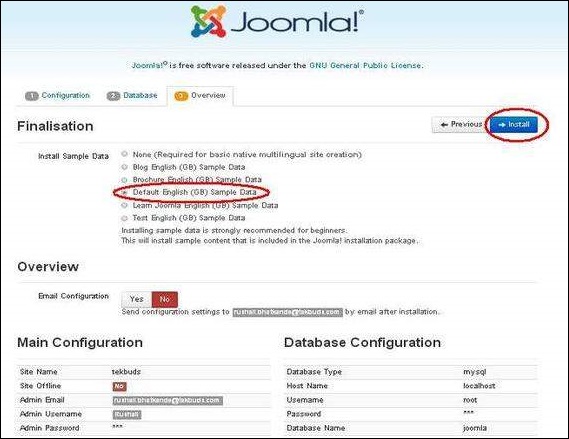
    Step (4) − during this step, you'll get on last page of the installation process.
joomla Setup
Here you can view all the information added to Joomla.
Choose Default English (GB) Sample Data as an example to build your website and click on Install button.
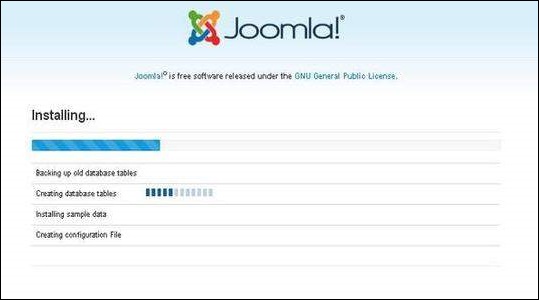
Step (5) − Next, you can see that Joomla starts the installation process on your machine.
joomla Setup
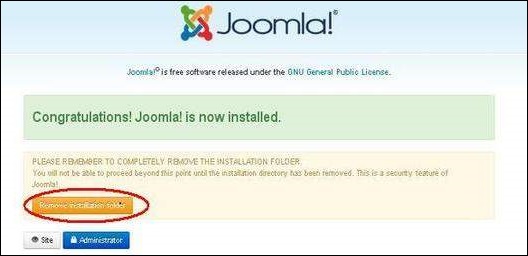
Step (6) − After a few minutes, after installation is successful and you will get a screen of the Joomla web installer as shown below.
joomla Setup
Next, click on the "Remove installation folder" button which will help you to protect your site, so that no other person can re-install your site.
Note − If your installation gets stuck and does not get completed for more than an hour, then do some changes as shown below.
Go to Joomla folder → installation → sql folder → mysql folder Open joomla.sqlfile and find the following term: "ENGINE=InnoDB". Replace this term with "ENGINE=MyIsam" and save the file.
Before MySQL 5.5.5, MyISAM is the default storage engine. (The default was changed to InnoDB in MySQL 5.5.5.)
Then your installation will begin.

Admin Panel

After installing Joomla you are able to login to your Joomla Admin Panel as described below −
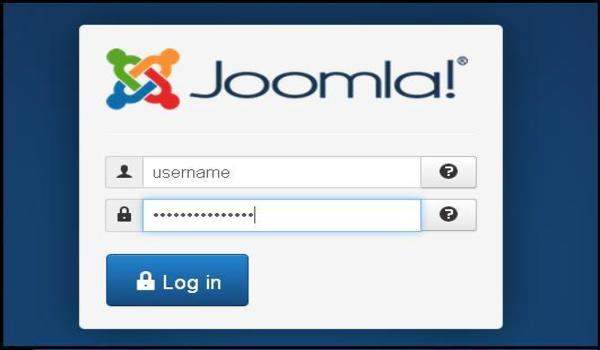
Step (1) − To access Joomla administrative panel, open the browser and type the URL as http://localhost/ < Your_joomla_folder >/administrator/index.php, then you will get the screen as shown below −
joomla Setup
Step (2) − Enter the username and password which you had mentioned during installation as shown in the step 3 of Set Up Wizard section and click on the login button.

Thursday, December 29, 2016

Joomla - Architecture

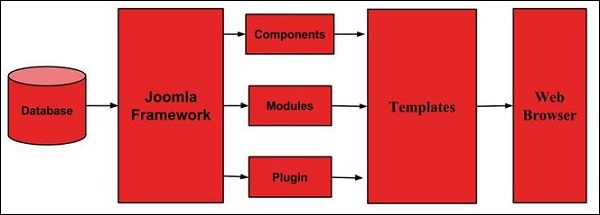
Joomla is a Model-View-Controller web application. In this chapter, we are going to discuss about the architectural style of Joomla. The following diagram shows the architecture of Joomla.
joomla Architecture
The architecture of Joomla contains following layers −
  • Database
  • Joomla Framework
  • Components
  • Modules
  • Plugin
  • Templates
  • Web Server
Database − Database is a collection of data and can be stored, manipulated and organized in a particular manner. The database stores the user information, content and many more required data of the site. It is used to store the administrative information to manage the Joomla site. Using Joomla database layer, it ensures maximum flexibility and compatibility for extension.
Joomla Framework − Framework is a collection of open source software, where the Joomla CMS is built. It is developed for more flexibility and breaks the framework into single modular packages which helps each package to develop more easily.
Components − Components are considered as mini applications. It consists of two parts i.e. Administrator and Site. Whenever a page gets loaded, component is been called to render the body of main page. The Administrator part manages different aspects of the component and the site part helps in rendering the pages when request is made by site visitor. Components are main functional unit of Joomla.
Modules − Modules is an extension which is used to render the pages in Joomla. It is also used to display the new data from the component. It frequently looks like boxes such as login module. In Joomla administrator the modules are managed by the module manager. It displays the new content and images when module is linked to Joomla components.
Plugin − This is also a kind of Joomla extension, it is very flexible and powerful for extending the framework. It contains a bit of codes that is used to execute the particular event trigger. It is commonly used to format the output of a component or module when a page is built. The plugin function which are associated with event are executed in a sequence when a particular event occurs.
Templates − Template determines the look of the Joomla website. There are two types of templates used i.e. Front-end and Back-end. The Back-end template is used to control the functions by the administrator where-as the Front-end template is a way to present the website to users. Templates are easy to build or customize your site. It provides maximum flexibility to style your site.
Web Browser − It is a server where the user interacts. It delivers the web pages to the client. The HTTP (Hyper Text Transfer Protocol) is used to communicate between the client and the server.

Wednesday, December 28, 2016

Joomla - Control Panel

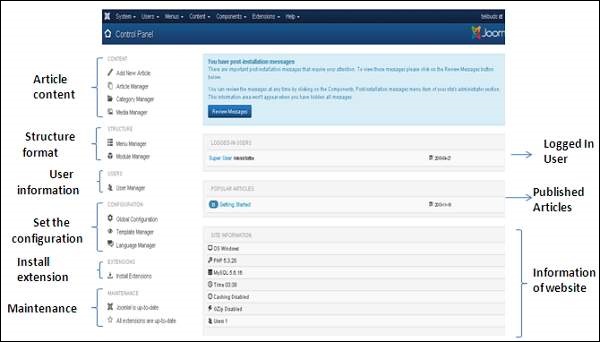
The instrument panel provides default features and functions of Joomla to access through clickable icons, menu bar etc. once you login to the Joomla administrative panel, you'll get the screen as shown below. Important icons of instrument panel and their functions are marked within the following screen −
joomla Control Panel

Article Content

There are four icons under the CONTENT section as shown below −
  • Add New Article − It creates a new article page.
  • Article Manager − It manages all your present articles.
  • Category Manager − It creates new categories and helps in publishing/unpublishing the categories.
  • Media Manager − It manages the files by uploading various new files or deleting the existing ones on your web server.

Structure Format

In STRUCTURE section, there are two groups of icons −
  • Menu Manager − Menu manager allows creating custom menus for your website and navigating through your website.
  • Module Manager − It manages the modules such as location and function of modules that are installed on site.

User Information

Under USERS section, there is one icon located −
  • User Manager − It manages the user information, which allows creating or deleting the user, changing passwords, time and languages. You can also assign the user to User Groups.

Set the configuration

Three icons are located under the CONFIGURATION section as given below −
  • Global Configuration − This is an important part in the Joomla back-end. Any changes made in this configuration, will affect the entire website.
  • Template Manager − It manages the templates used in the website.
  • Language Manager − It manages installed language by setting the default language for your site.

Install Extension

There are many Extensions available in Joomla. You can install different types of extensions to extend the functionality of the site.

Maintenance

In MAINTENANCE section, there are two icons located −
  • Joomla is up-to-date − It views the current update status of the Joomla installation.
  • All extensions are up-to-date − It views the current update status of the Joomla extension.

Logged-In User

It shows the administrator name who has logged in to the Joomla site.

Published Articles

It shows the published articles and also shows the present article, that you have published.

Information of Sites

It displays the details of the site such as OS name, version of PHP and MySQL etc and also shows the number of users that are using this site.


Tuesday, December 27, 2016

Joomla - Toolbar

In this chapter we will study about the various toolbar options in Joomla. Given below is a list of toolbars −
  • Article Manager Toolbar
  • Category Manager Toolbar
  • Media Manager Toolbar
  • Menu Manager Toolbar
  • Module Manager Toolbar
  • User Manager Toolbar
  • Global Configuration Toolbar
  • Template Manager Toolbar

Article Manager Toolbar

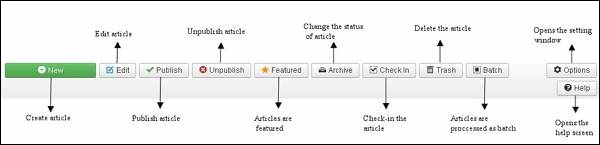
Click on Content → Article Manager in Joomla administrator control panel. In Article Manager, you can create the standard pages that consist of images, text and hyperlinks. The following figure depicts the Article Manager Toolbar.
joomla Article Manager Toolbar
  • New − Create a new article.
  • Edit − Edit any specific article.
  • Publish − Publish the article to the user on the website.
  • Unpublish − Unpublish the article to the user on the website.
  • Featured − Selected article is featured. Multiple articles can also be featured.
  • Archive − It can change the status of the articles to published or unpublished by selecting archived in the select status filter.
  • Check In − Check-in the selected article. Multiple articles can be checked-in.
  • Trash − Delete the selected article permanently.
  • Batch − Selected articles are processed by batch.
  • Help − Help button is used to open the help screen.
  • Option − It opens the setting window where you can change the setting of the articles.

Category Manager Toolbar

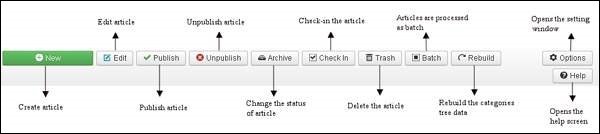
Click on Content → Category Manager in Joomla administrator control panel. It manages to create categorize the articles which allows to group your content better. The following figure depicts the Category Manager Toolbar.
joomla Category Manager Toolbar
  • New − Add a new category.
  • Edit − Edits an existing category.
  • Publish − Publish the categories to the user on the website.
  • Unpublish − Unpublish the categories to the user on the website.
  • Archive − It can change the status of the categories to published or unpublished by selecting archived in the select status filter.
  • Check In − Check-in the particular selected category. Multiple categories can be checked-in.
  • Trash − Delete the selected category permanently.
  • Batch − Selected categories are processed by batch.
  • Rebuild − It is used to rebuild the categories tree data.
  • Help − Help button is used to open the help screen.
  • Option − It opens the setting window where you can change the setting of the articles.

Media Manager Toolbar

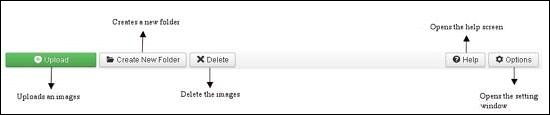
Click on Content → Media Manager in Joomla administrator control panel. It manages the files by uploading a new file or deleting the existing ones on your web server. Given below is a snapshot of the Media Manager Toolbar.
joomla Media Manager Toolbar
  • Upload − Upload images from your system.
  • Create New Folder − Create a new folder on Joomla server.
  • Delete − Deletes the selected item/images permanently.
  • Help − This opens the help screen.
  • Option &minus It opens the setting window where you can change the setting of the articles.

Menu Manager Toolbar

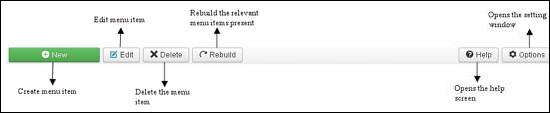
Click on Menus → Menu Manager in Joomla administrator control panel. It manages the menu items. Here new menus are created, deleted or menus are managed subsequently. Given below is a snapshot of the Menu Manager Toolbar.
joomla Menu Manager Toolbar
  • New − It creates a new menu item.
  • Edit − Edits the selected menu item.
  • Delete − Deletes the selected menu item permanently.
  • Rebuild − It rebuilds or refreshes the relevant menu items present.
  • Help − Help button is used to open the help screen.
  • Option − It opens the setting window where you can change the setting of the articles.

Module Manager Toolbar

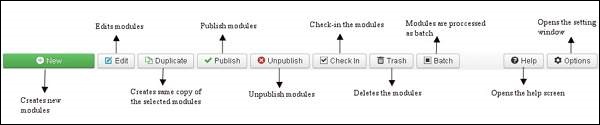
Click on Extension → Module Manager in Joomla administrator control panel. It manages the modules location and functions that are installed. The following figure depicts the Module Manager Toolbar.
joomla Module Manager Toolbar
  • New − It creates new modules.
  • Edit − It edits the selected modules.
  • Duplicate − A copy of the selected module can be created using this button.
  • Publish − Publish the selected modules to the user on the website.
  • Unpublish − Unpublish the selected modules to the user on the website.
  • Check In − Check-in the particular selected modules. Multiple modules can be checked-in.
  • Trash − Delete the selected modules permanently.
  • Batch − Selected modules are processed by batch.
  • Help − Help button is used to open the help screen.
  • Option − It opens the setting window where you can change the setting of the articles.

User Manager Toolbar

Click on Users → User Manager in Joomla administrator control panel. It manages all the user information such as Username, Email, Last Visit Date and Registration Date. Given below is the snapshot of the User Manager Toolbar.
joomla User Manager Toolbar
  • New − It creates a new user.
  • Edit − It edits the selected user.
  • Activate − It activates multiple users.
  • Block − It blocks the selected user.
  • Unblock − It unblocks the selected users.
  • Delete − It deletes the particular users.
  • Batch − Selected users are processed as a batch.
  • Help − Help button is used to open the help screen.
  • Option − It opens the setting window where you can change the setting of the articles.

Global Configuration Toolbar

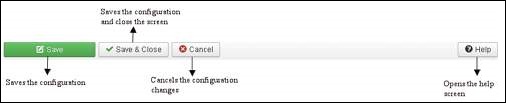
Click on System → Global Configuration in Joomla administrator control panel. It manages the global setting of the Joomla site. Given below is a snapshot of the Global Configuration Toolbar.
joomla Global Configuration toolbar
  • Save − Saves the configuration and stays on the same screen.
  • Save & Close − Saves the configuration and closes the screen.
  • Cancel − Cancels the configuration changes and returns to the previous screen without saving.
  • Help − Help button is used to open the help screen.

Template Manager Toolbar

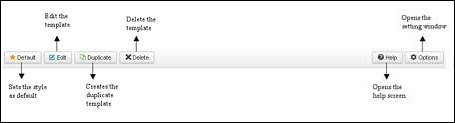
Click on Extension → Template Manager in Joomla administrator control panel. It manages the templates that you use in the website. The following picture shows the Template Manager Toolbar −
joomla Template Manager Toolbar
  • Default − Sets the particular selected style as default.
  • Edit − Edits the template pages.
  • Duplicate − Creates a duplicate template.
  • Delete − Deletes the template.
  • Help − Help button is used to open the help screen.
  • Option − It opens the setting window where you can change the setting of the articles.

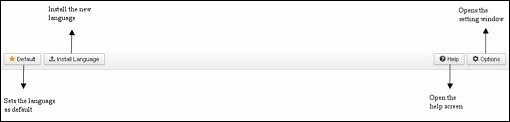
Language Manager Toolbar

Click on Extension → Language Manager in Joomla administrator control panel. It manages the languages that you use in the website. The following picture shows the Language Manager Toolbar −
joomla Language Manager Toolbar
  • Default − Sets the particular selected language as default.
  • Install Language − Install the required language.
  • Help − Help button is used to open the help screen.
  • Option − It opens the setting window where you can change the setting of the articles.

Liquid Web and Nexcess Comparison - the best review latest

Liquid Web and Nexcess Comparison - the best review latest   i am writing detailed and latest comparison between Liquid web and Nexcess. www...